
Photoshop Beginners
On-Demand Video Course
£95.00
Associated Courses
6 months unlimited access
Learn from the experts at Highlander!
Learn Photoshop at your own speed.
Designed for complete beginners this course contains over 6 hours of detailed video tutorials, taking you through all of the core features of Photoshop and designed in a logical and natural order by an instructor with over 20 years of experience teaching the product.Why take this course
When you are getting started with Photoshop, best practice is crucial in order to ensure you aren't wasting valuable time. Something as simple as working properly with masks or smart objects could save you hours of work later on, as well as mean your files are compliant with industry standards.Skills worth having
Understand core concepts
To work properly in Photoshop you need to first understand a number of basic concepts such as image resolution and color modes in order to ensure files are optimised for both print and digital output.Master the Photoshop interface
Learn how to navigate the Photoshop interface with ease. Familiarize yourself with key tools and panels for efficient workflow, and learn to use Photoshop workspaces to make your life easier. What's more you understand how to optimize Photoshops preferences for a personalized user experience.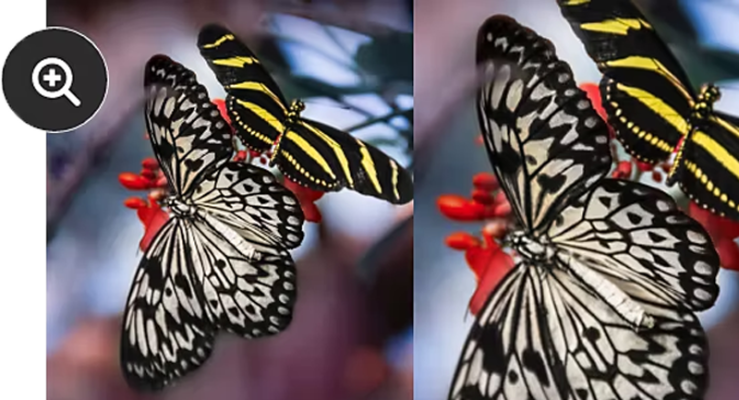
Master zooming techniques
Quickly and accurately zoom into your images for detailed editing, snapping to fit images into the window, and quickly zooming to precise areas of the image.Work with Layers
Layers are probably one of Photoshop's most powerful tools. With them you can unleash the flexibility of non-destructive editing which allows you to work with smart filters, use the filter gallery none destructively, apply blur and pixelate filters, sharpen your images or use liquify filters to make a wide range of adjustments.Sample video from the course
Make detailed selections
Learn to make use of a wide range of selection tools, including marquee tools, lasso tools, object selections, quick selections and color range selections. You will also get to grips with a number of powerful and important shortcuts that allow you to add to, remove from and intersect with existing selections.Use powerful transparency layer masks
Second only to layers themselves in their usefulness, Layer Masks allow you to enable, disable or partially enable areas of a layer including adjustment layers, smart objects or regular raster layers. This means you can localise changes to one area of a layer, not to mention reverse your edits quickly and easily should the need ariseDiscover cutting edge Neural Filters
You will learn how to use these AI-powered tools within Photoshop, allowing you to undertake advanced image manipulations including: Skin Smoothing to quickly smooth blemishes, skin spots and acne with just a couple of clicks Smart Portrait allowing you adjust portraits with settings for Happiness, Surprise, Anger, Facial Age, Gaze, Hair Thickness, Head Direction and more. Colorize which allows you to quickly and easily recolor black and white images Style Transfer allowing you to apply artistic styles from other images or artists to your own images, as well as a number of other powerful neural filter features.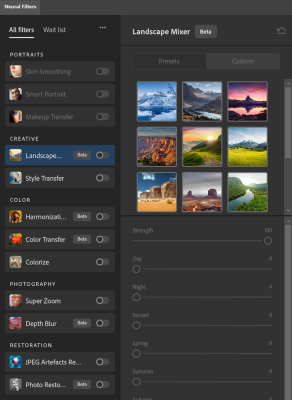
Accurate Cropping
Master how to crop your images to ensure they are the size you need, whether it's for social media posts, print design or some other use. Additionally you will be able to crop items that have a different perspective in order to reuse them on another composition.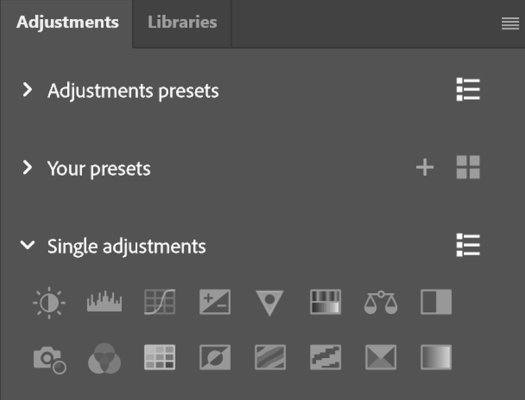
Non-Destructive Adjustment Layers
Work with a range of different non-destructive adjustment layers to improve color, lighting, brightness, contrast, and tonal balance within your images. These powerful adjustments allow you to quickly make changes to your images which can be easily undone or altered. Best of all change can be localised quickly and easily using auto generated masks that are includedIn addition you will
- Learn why different color modes exist and when to use them. How do CMYK and RGB differ and and when we use them.
- Familiarize yourself with key tools and panels for efficient workflow, and learn to use Photoshop workspaces to make your life easier.
- Create visually appealing text elements in your designs, learning all about text formatting, styling, and more advanced typographic features such as layer styles.
- Learn proper file-saving techniques for different purposes, and optimizing images for various outputs, including web and print.
- Work with brushes for precise editing, learning how to adjust brush settings like opacity and hardness, as well as work with them on masks as well as images.
- Experiment with a variety of different filters to transform your images. You will learn how to work with smart filters, use the filter gallery, apply blur and pixelate filters, sharpen your images or use liquify filters to adjust your image.
- Get to grips with color correction techniques for vibrant, balanced images. Understanding how to correct color imbalances and enhance overall tonality within your images.
Feedback from our past Photoshop students
(including from live classes)
Great instructor, taught us everything we could possibly need.
About the course instructor
This course is produced by Andy Gardiner, a PGCE (Level 7) qualified teacher and CompTIA Certified Technical Trainer with over 25 years of experience working with Adobe Creative Cloud. Andy has delivered training to some of the world’s best-known organisations and spent more than a decade as an Adobe Certified Instructor. He is also a published author, having written about Adobe technologies for leading publisher Packt.

The course is carefully structured to teach you the skills needed in a logical order. You start with basic Photoshop skills like adjusting the interface, opening and closing panels, and making basic selections, before advancing to work with masks, make various adjustments (a video from this section is shown below), use filters and more.
Start Right Now
£95.00